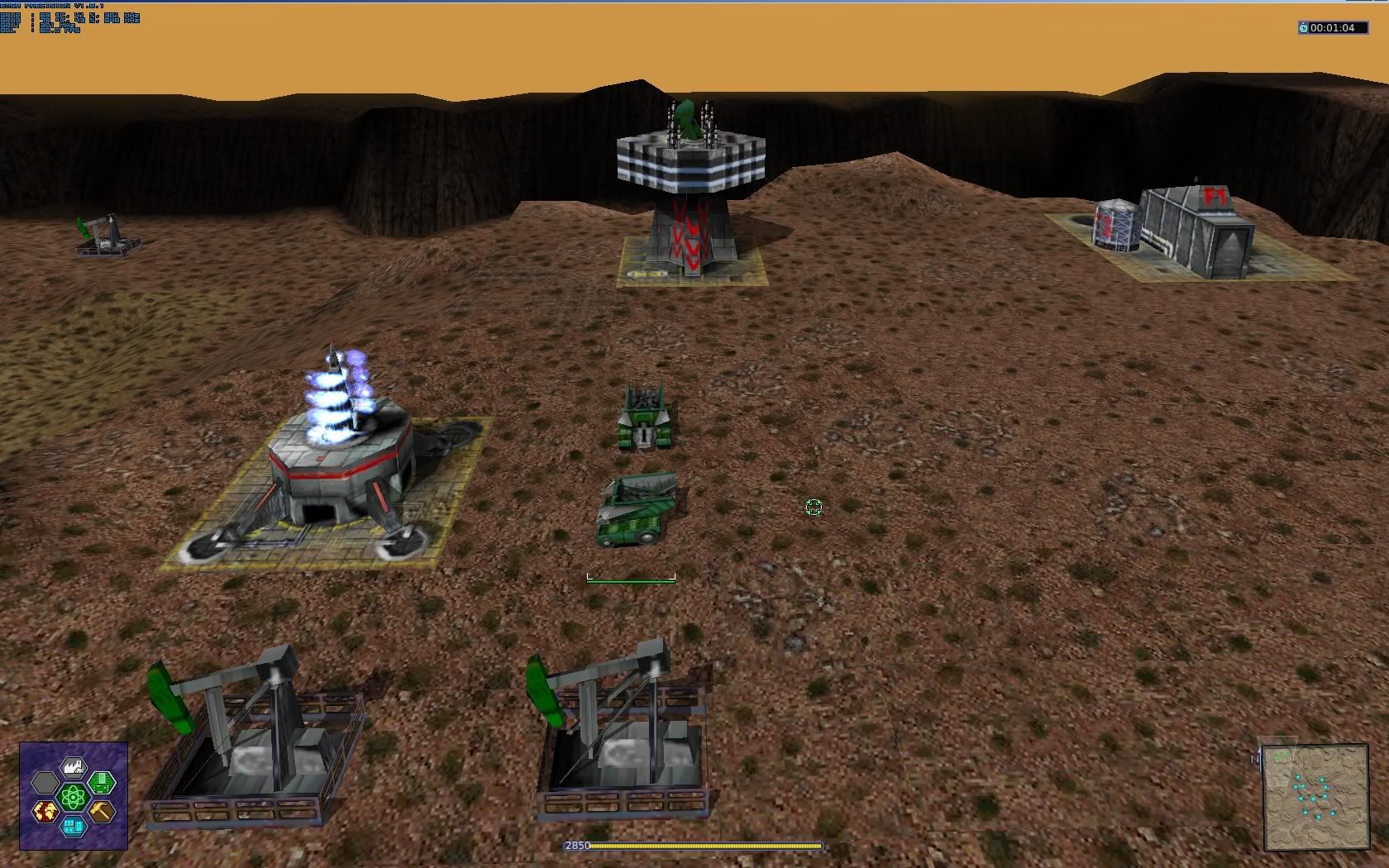
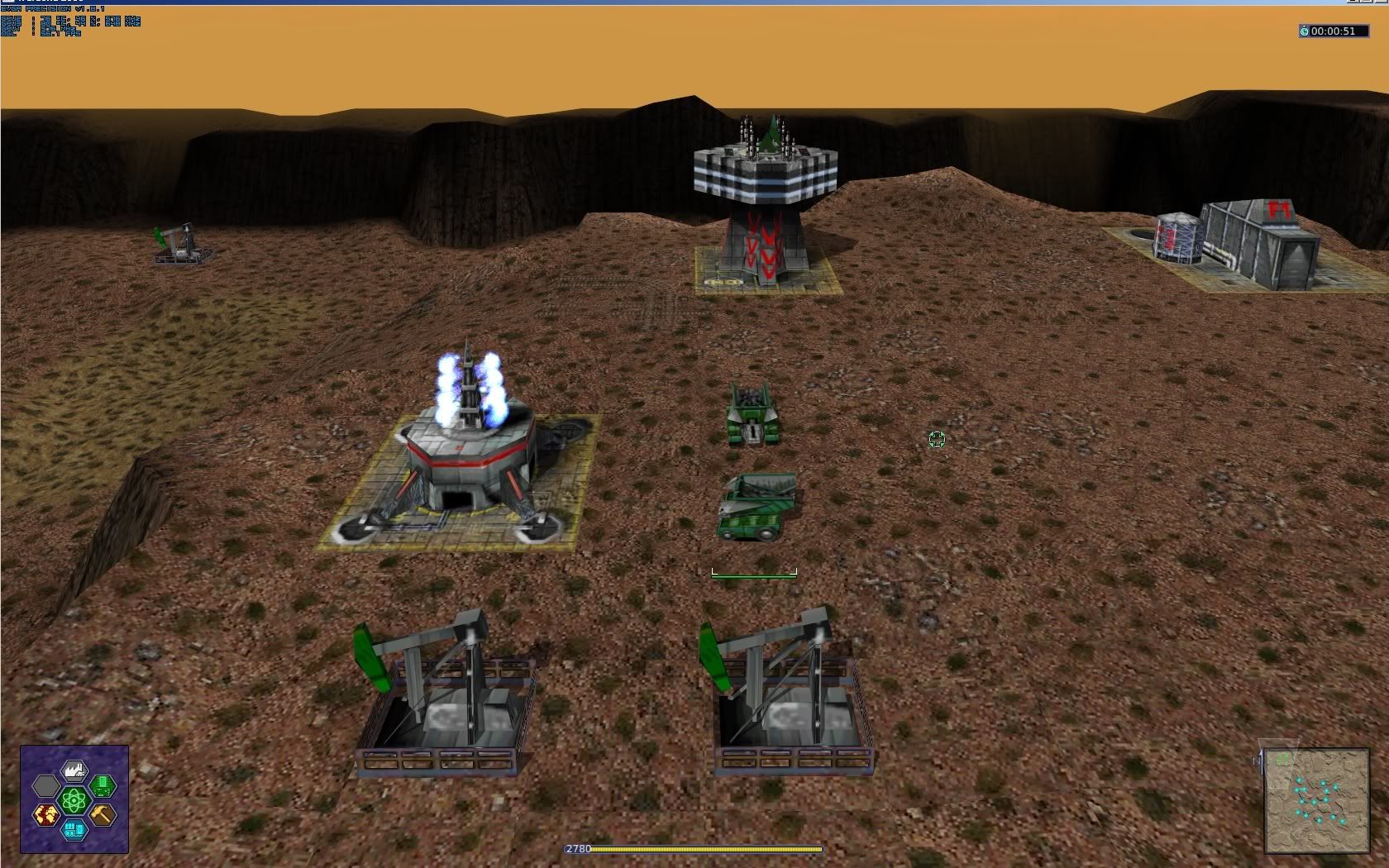
Nvidia Cards:
Recommended graphics card for game enhancements: GeForce 5 FX series or higher onboard or dedicated graphics card.
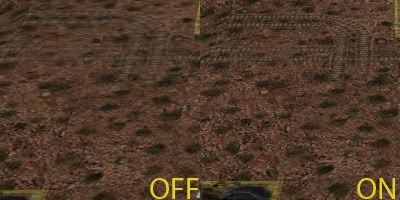
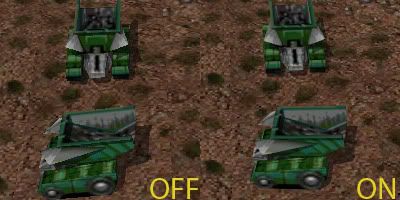
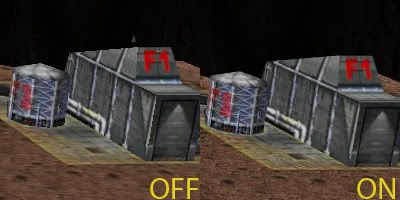
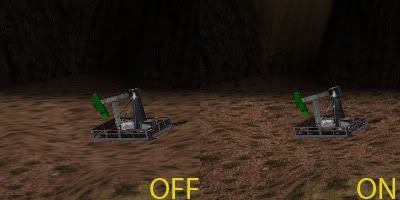
Using a good computer with an Nvidia graphics card? Go into your Nvidia Control Panel and click on Manage 3D settings, then select the Program Settings Tab, click the add button and choose your Warzone 2100 shortcut or exe. From there you can set the quality of the game and performance, Things like Anti-Aliasing, and Anisotropic Filtering which are both supported by the game's engine. Turning these on to settings like 4x or 16x will reduce jaggy edges and most glitchy animations that may occur occasionally. There is also another setting called Anti-Aliasing - Transparency, with softens the edges/particals on objects that create see through rendering or are transparent. Select Supersampling and this will improve the quality of the game some more. With this you can give the game a lot more realistic feel to your game play. Be sure to download the latest drivers here http://www.nvidia.com/Download/index.aspx?lang=en-us - Only for Nvidia Graphics Cards
Your options should look like this:
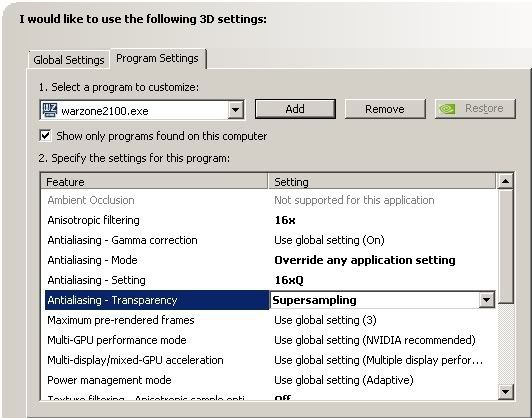
You do not need to have it set to x16Q or x16 to see changes, but it is recommended for the best visual experience.
Turning on Texture Quality to High Quality will improve Mipmaps, and Bitmapping images.
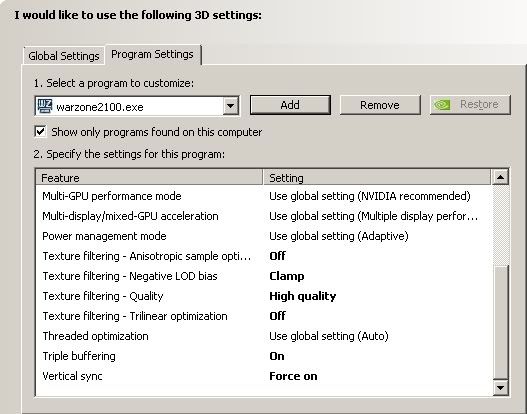
Pictures taken from driver version 195.62 WHQL
Radeon Cards:
Recommended graphics card for game enhancements: Radeon 9250 or higher onboard or dedicated graphics card.
Using a Radeon graphics card? Want to get the same benefits as Nvidia users? In your Catalyst Control Panel go into your 3D tab click on Anti-Aliasing, check the box Temporal anti-aliasing slide the Level over to the right all the way. This will reduce any jaggy edges. Next click on Adaptive Anti-Aliasing, click on the check box Enable Adaptive Anti-Aliasing and then slide the slider to the right. Next click on Anitstropic Filtering, select the box High Quality AF and slide the Per-pixel samples all the way to the right. Lastly click on Mipmap Detail Level, then slide the slider all the way to the right. After you are done changing all these setting click on apply to save the setting. Be sure to get the latest drivers here http://support.amd.com/us/gpudownload/Pages/index.aspx - Only for Radeon Graphics Cards
Your options should look like this:


Pictures taken from driver versions 7.1 and 9.11 WHQL
3D Funk:
Hint: Using an Nvidia card 8 Series or higher? Try out their 3D Discover Glasses, for Warzone 2100 your projectiles and explosions really come out of the screen! The effects are pretty cool, and its worth the $10 for a pack of 10 glasses for you and your friends. Since you can use the 3D options on Nvidia to also see images popup out of your screen on videos and most 3D games. You can order them here, http://store.nvidia.com/DRHM/servlet/Co ... =148411500
Note: Although the above seems like Advertising... I'm just letting people know that there are other ways to boost the look and experience of Warzone 2100 and to create a new feel to the game.
Questions or Concerns?
If there are any questions please feel free to post, I may make more changes if I find any fixes or tweaks to improve game quality. If there are people using older computers that want a tutorial on increasing performance(speed of game) I will add one, I'm assuming everyone is using newer computers with onboards or dedicated graphics cards better than the ones recommended.
Credits:
Guide and Nvidia Control Panel Pics:
Zeek The Geek (me)
Pictures for Catalyst Control Center:
ATI's Website, TweakGuides, TechTree
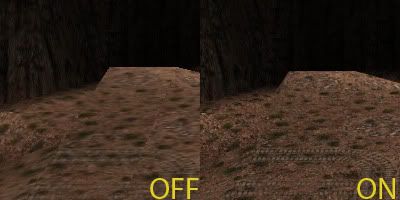
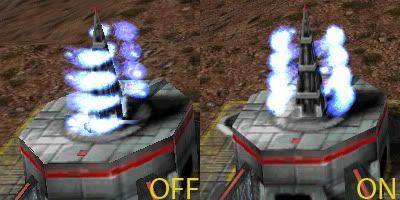





 It is very nice and detailed, plus it helps anyone who doesn't know how to setup their settings for games in general. Although not all games can be run with settings like that, at least not smoothly, just this game.
  I have an i7 920 @ 3.2Ghz, DDR3 Triple channel RAM @ 1600Mhz, and a GTX 295. So I can afford to run most all games at these settings.. With the exception of Crisis and Dirt 2. Lol